Offline maps
Offline maps are map layers installed in CyberTracker and SMART Mobile. They are used on the Map page and, with the exception of WMS layers, do not require a network connection.
A map package is a zip file holding one or more layers. A package may also carry a place lookup — geometry plus content that answers the question “the user tapped at (x, y) — what content applies here?”.
Table of Contents
1. Map packages
A map package is a zip file with all files at the archive root — there is no enclosing directory inside the archive.
Map layers are used from the Map Layers page. The Zoom to will zoom to the entire extent of a layer:
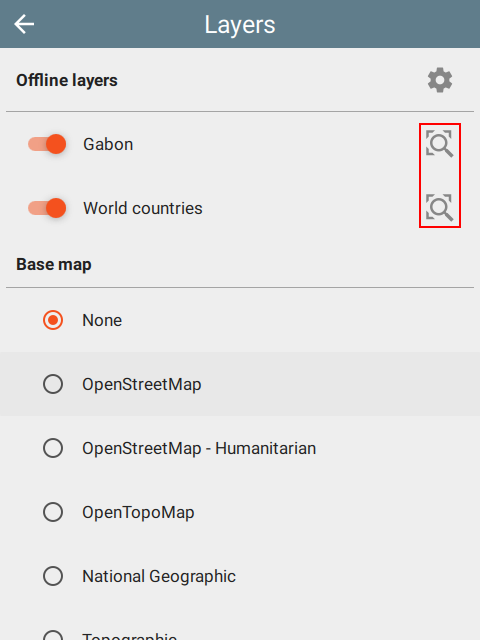 | 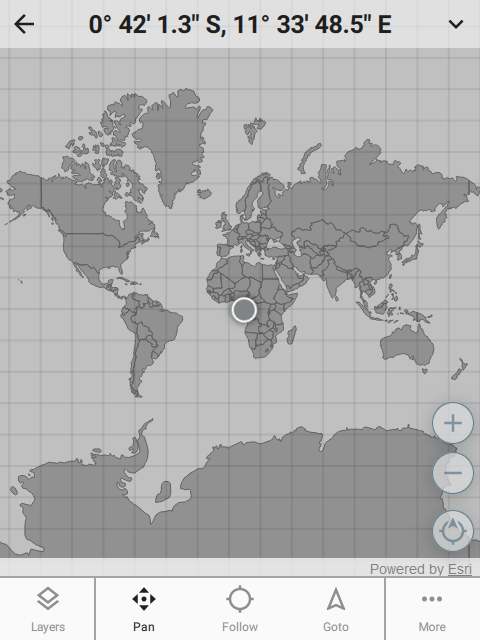 | 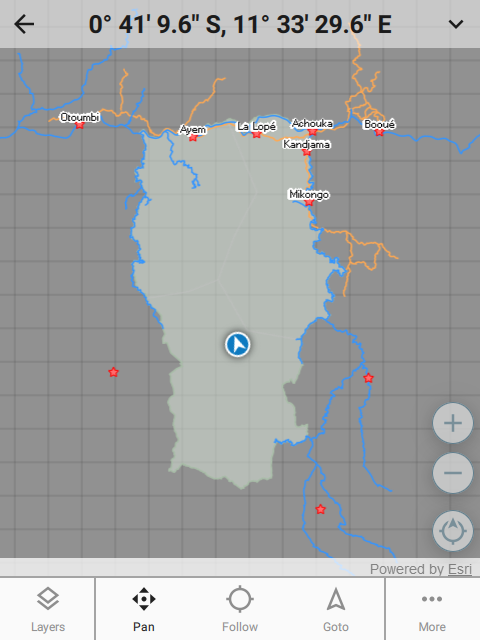 |
1.1 Simple: layers in a zip file
In its simplest form, a package is just a zip of layer files. The runtime discovers and installs every layer it recognizes — no manifest required. See this sample.
Many layer formats use multiple files sharing a basename (for example, a shapefile uses .shp, .shx, .dbf and .prj). All companion files must be at the root of the zip.
Supported layer formats:
- ESRI: shapefile (
.shp), tile package (.tpk), vector tiles package (.vtpk) - ASRP/USRP
- CIB1, 5, 10
- DTED0, 1, 2
- GeoTIFF, HFA, HRE, IMG
- JPEG, JPEG 2000
- NITF
- PNG
- RPF
- SRTM1, 2
- Mosaic Dataset in SQLite (read-only)
- MapBox:
.mbtiles - Google:
.kml - GeoJSON
WMS layers
Web Map Service layers are added to a package by dropping a JSON file with extension .wms into the zip. Although these layers are online, they are configured through the offline map system:
{
  "layer": "0",
  "service": "https://basemap.nationalmap.gov/arcgis/services/USGSHydroCached/MapServer/WMSServer"
}
1.2 Adding a layers.json
When draw order, opacity, layer names or place-lookup participation matter, add a top-level JSON array of layer objects to the zip:
[
  {
    "filename": "Gabon.mbtiles",
    "name": "Gabon",
    "active": true,
    "opacity": 1.0
  },
  {
    "filename": "Country.shp",
    "name": "World countries",
    "active": true,
    "opacity": 0.5
  }
]
| Field | Type | Purpose |
|---|---|---|
filename | string | A filename in the zip belonging to the layer — typically the primary display file (.geojson, .shp, .mbtiles, .tif, .kml, etc.). The runtime takes the basename to locate companion files. |
name | string | Human-readable layer name shown in the UI. |
active | boolean | Whether the layer is visible when the package is first loaded. |
opacity | number | Optional layer opacity from 0.0 (transparent) to 1.0 (opaque). |
lookup | boolean | Whether the layer participates in place lookup. |
symbol | object | Optional symbol description for vector layers (see §1.3). |
If layers.json is absent, the runtime discovers layers from the archive files directly.
1.3 Symbols for shape files
A symbol field on a layers.json entry styles a shape file layer. It describes the point, line or area symbol, and can carry a nested label that draws text from an attribute field.
Point
marker-style is one of circle, cross, diamond, square, triangle, x:
{
  "marker-style": "circle",
  "marker-size": 5.5,
  "marker-color": "#ffff00",
  "outline-color": "#ff0000"
}
Line
stroke-style is one of solid, dash, dashdot, dashdotdot, dot:
{
  "stroke-style": "dashdot",
  "stroke-size": 4.4,
  "stroke-color": "#ffff00"
}
Area
outline-symbol is optional.
fill-style is one of none, solid, horizontal, vertical, forwardDiagonal, backwardDiagonal, cross, diagonalCross:
{
  "fill-style": "solid",
  "fill-color": "#ff00ff",
  "outline-symbol": {
    "stroke-style": "dashdot",
    "stroke-size": 1.0,
    "stroke-color": "#ffff00"
  }
}
Label
A label object nested inside symbol draws a text label from one of the shape file’s attribute fields. It is additive — it renders in addition to the point, line or area symbol, so a single symbol can both draw a marker and label it. Labelling works for point, line and area shape files; the runtime places the text automatically (near points, along lines, centered in polygons).
{
  "marker-style": "circle",
  "marker-color": "#ff0000",
  "label": {
    "field": "CAPITAL",
    "color": "#000000",
    "size": 10,
    "halo-color": "#ffffff",
    "halo-size": 1,
    "placement": "above-center"
  }
}
| Field | Type | Purpose |
|---|---|---|
field | string | Required. Name of the attribute (.dbf) field whose value is drawn. If empty or missing, no label is drawn. |
color | string | Text color. Default #000000. |
size | number | Base text size. Default 10. Scaled by the app’s global font-size setting, so it stays consistent with the rest of the UI. |
halo-color | string | Color of the outline drawn around the text for legibility. Default #ffffff. |
halo-size | number | Halo thickness. Default 1. |
placement | string | Position relative to a point feature: center, center-left, center-right, above-center, above-left, above-right, below-center, below-left, below-right. Default above-center. Ignored for lines and areas. |
xoffset | number | Horizontal text offset. Default 0. |
yoffset | number | Vertical text offset. Default 0. |
2. Adding a package.json
package.json identifies the package as a whole. This ensures that new packages properly replace old packages during update.
{
  "id": "org.my.package.id",
  "name": "Maps of the world",
  "version": "2026.04.21",
  "language": "en"
}
| Field | Type | Purpose |
|---|---|---|
id | string | Stable package identifier. The runtime uses it for deduplication. |
name | string | [Optional] Human-readable package name. |
version | string | [Optional] Package version. Versions are compared lexically — choose values whose string ordering gives the intended semantic ordering (e.g. ISO-style 2026.04.21, or zero-padded numeric). |
language | string | [Optional] Language identifier such as en or mn. |
When package.json is present, the runtime uses id to decide whether an installed package should be replaced.
3. Place lookup
A place lookup answers:
the user selected or tapped at
(x, y)— what content applies here?
A layer participates by setting lookup: true in its layers.json entry and shipping two companion files in the same zip:
<basename>.geojson— lookup geometry - polygons and multi-polygons<basename>.json— renderable content
If the primary layer file is a GeoJSON, this will not be rendered. To see polygons, use a different primary format (like ShapeFile), but include the geojson and json with the same basename: shape.shp, shape.shx, shape.dbf, shape.geojson and shape.json.
Triggering a lookup
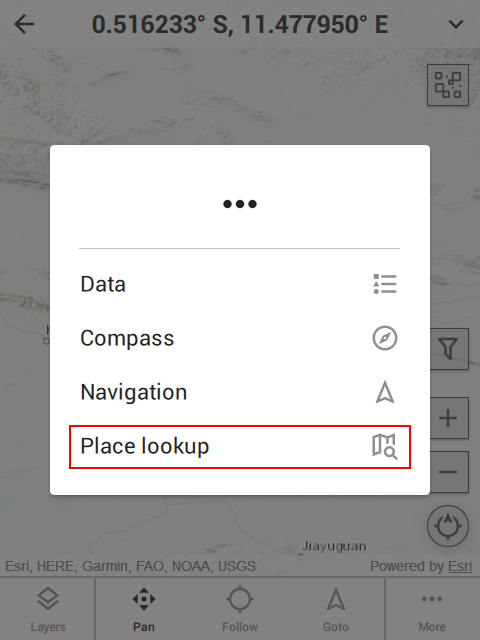
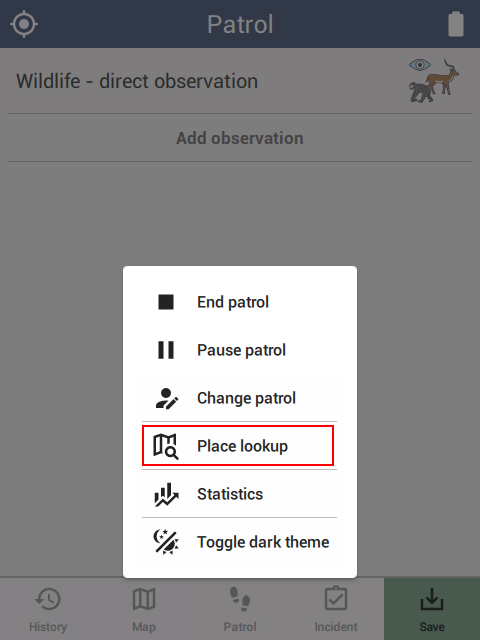
Once a package with lookup: true layers is loaded, there are three ways to trigger a lookup:
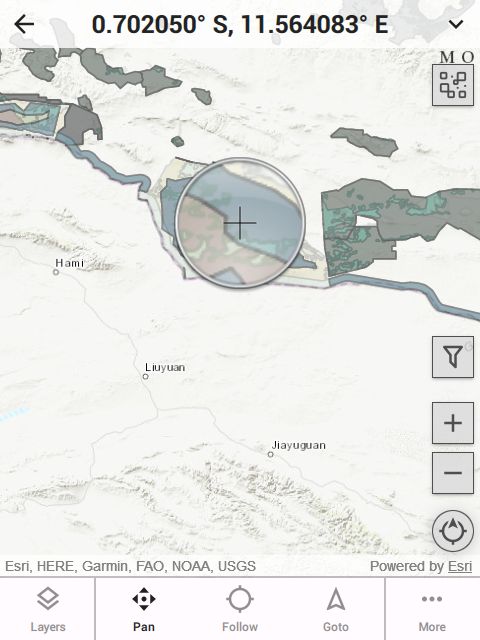 |  |  |
- Long press on the map — A magnifying glass appears, allowing a precise location.
- Menu button — Tap the
...button in the lower right corner of the map page. This uses the current location. - SMART patrol or survey — During a patrol or survey, the control popup includes a lookup button. This uses the last known location.
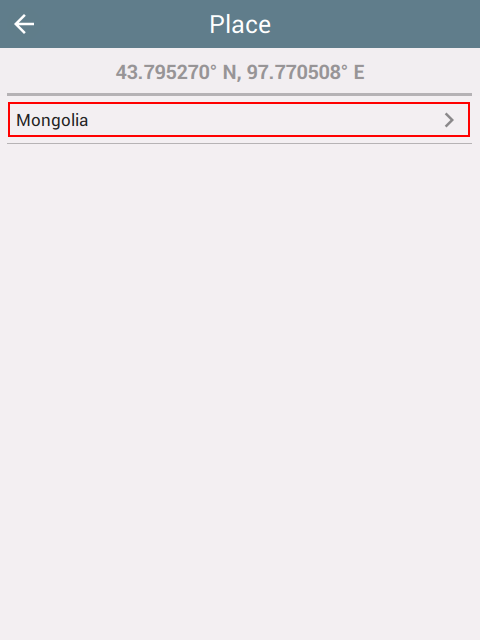
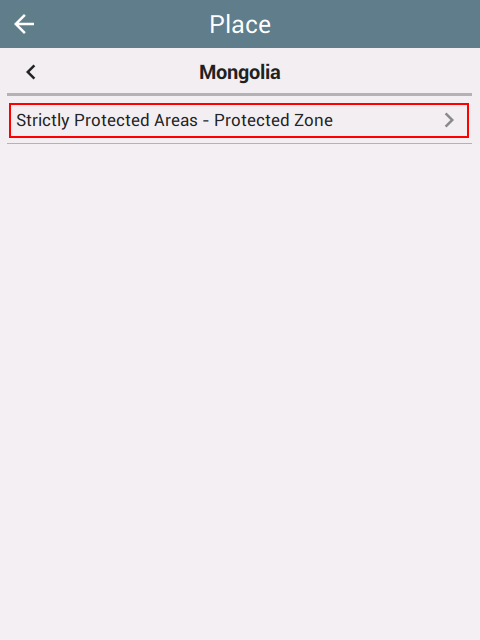
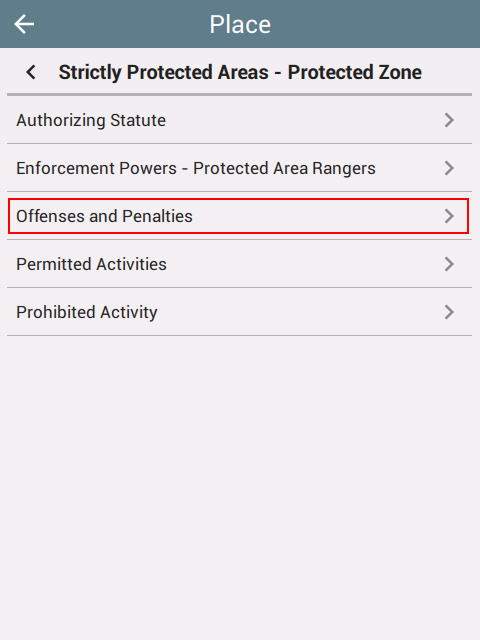
After triggering, a navigation page appears for browsing the matched content:
 |  |  |
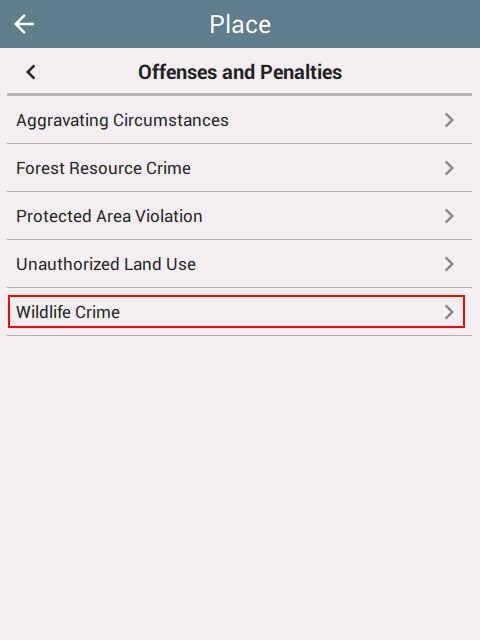 | 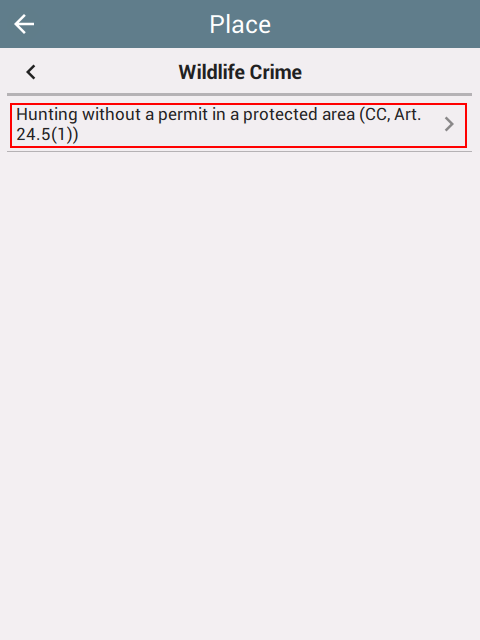 | 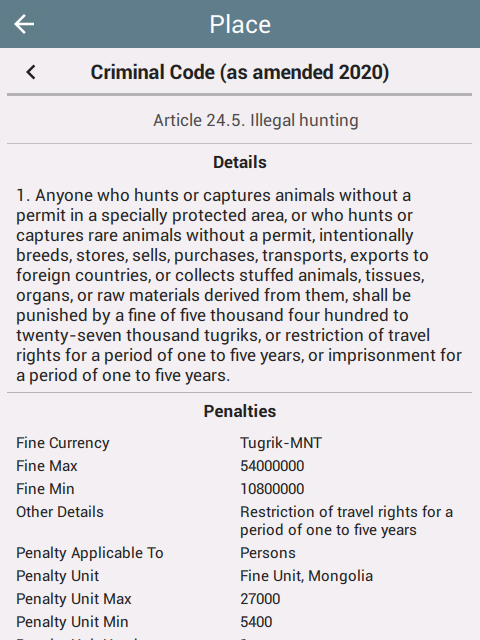 |
The top-left back button returns to the prior page; the title-bar back button returns to the prior lookup page.
Lookup geometry — the join key
The companion GeoJSON is the file the point-in-polygon test runs against. Each feature used for matching must carry a string property named featureId inside properties:
{
  "type": "Feature",
  "properties": {
    "featureId": "country:MN",
    "name": "Mongolia"
  },
  "geometry": { "type": "Polygon", "coordinates": [[ ... ]] }
}
The standard top-level GeoJSON id field is not used. featureId is an opaque string; conventional namespacing (country:MN, region:MN-073, world) keeps ids legible across packages but is not required.
Content JSON structure
The companion <basename>.json looks like this:
{
  "content": {
    "id": "Seasons",
    "language": "en",
    "defaultLocale": "en-US"
  },
  "datasets": [ ... ]
}
content fields:
| Field | Type | Purpose |
|---|---|---|
id | string | Stable identifier for this content file. |
language | string | Language identifier such as en or mn. |
defaultLocale | string | Optional locale identifier such as en-US or mn-MN. |
datasets is an ordered array. Each dataset has:
id— stable identifier.filter— when this dataset applies (see §3.1 and §3.2).rows— non-empty ordered array of renderable rows.
Datasets render in declaration order; multiple matching datasets in the same content file all contribute their rows.
A row has:
path— full localized browse path shown in the UI (array of strings, parent-to-child).view— renderable content (see Views below).- optional
filterto override the dataset-level filter at row scope.
Views
A view is the renderable content of a row:
| Field | Required | Notes |
|---|---|---|
title | yes | Short heading. |
subtitle | no | Optional secondary heading. |
name | no | Optional short label used in browse lists when distinct from title. |
blocks | yes | Non-empty ordered array of render blocks. |
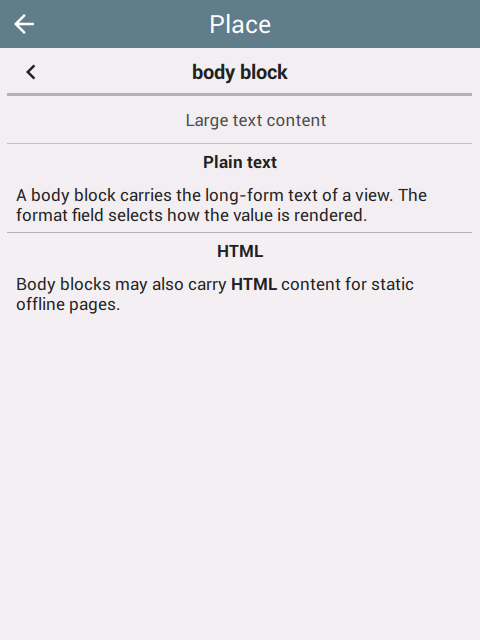
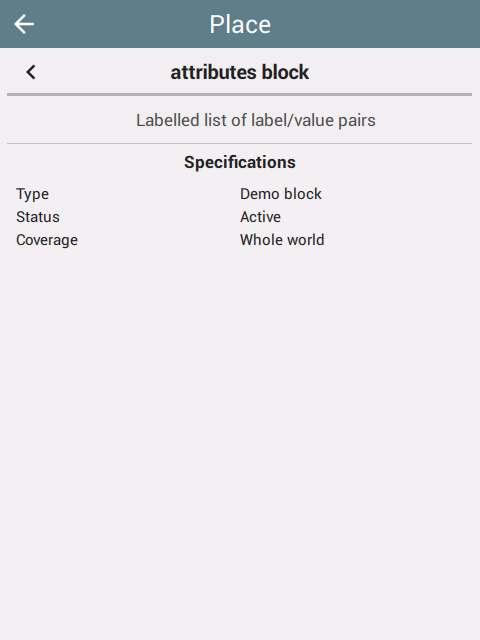
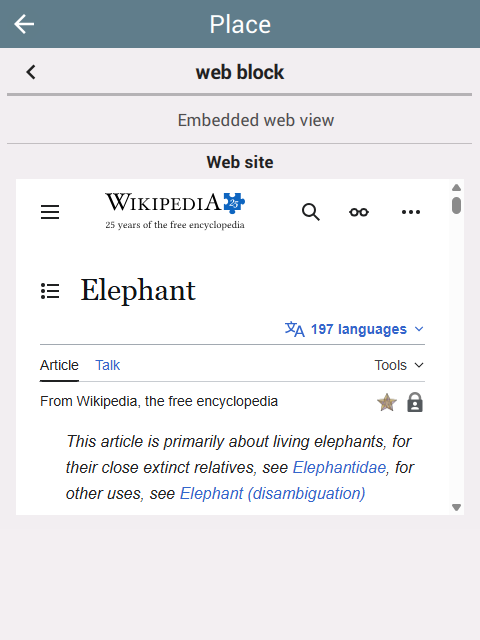
Six block types are defined; consumers should silently skip blocks of unknown types. Every block accepts an optional label; for attributes blocks the label is required.
| Block type | Purpose |
|---|---|
body | Large text content (format: text, html, or markdown). |
attributes | Labelled list of label/value pairs. |
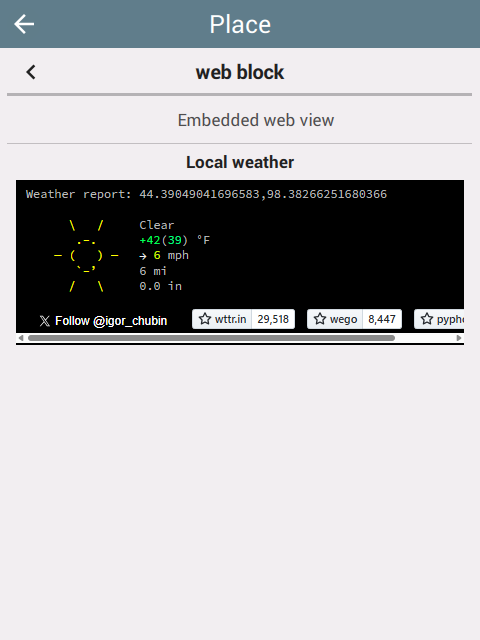
web | Embedded web view; the runtime substitutes <latitude> and <longitude> tokens in value. |
image | Embedded image (source URL). |
link | Clickable link (link target, text visible). |
notice | Highlighted callout (tone: note, important, caution, restriction). |
Block samples:
{
  "type": "body",
  "label": "Details",
  "format": "html",
  "value": "<p>The purpose of this law is to regulate ...</p>"
}
Format should be html for rich text and html. For plain text, leave blank.
{
  "type": "attributes",
  "label": "Penalties",
  "items": [
    { "label": "Fine Min", "format": "text", "value": "900000" },
    { "label": "Fine Max", "format": "text", "value": "10800000" },
    { "label": "Currency", "format": "text", "value": "Tugrik-MNT" }
  ]
}
{
  "type": "web",
  "label": "More info",
  "url": "https://wttr.in/<latitude>,<longitude>?0",
  "orientation": "landscape"
}
{
  "type": "image",
  "label": "Photo",
  "source": "https://example.org/image.jpg"
}
{
  "type": "link",
  "label": "Reference",
  "url": "https://example.org/regulation",
  "text": "View full regulation"
}
{
  "type": "notice",
  "label": "Important",
  "tone": "restriction",
  "text": "Hunting is prohibited in this zone."
}
Tone can be note, important, caution, restriction.
 |  |  |
 | 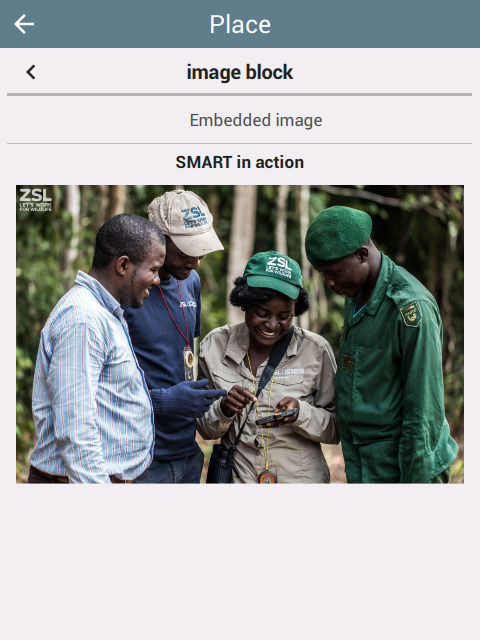 | 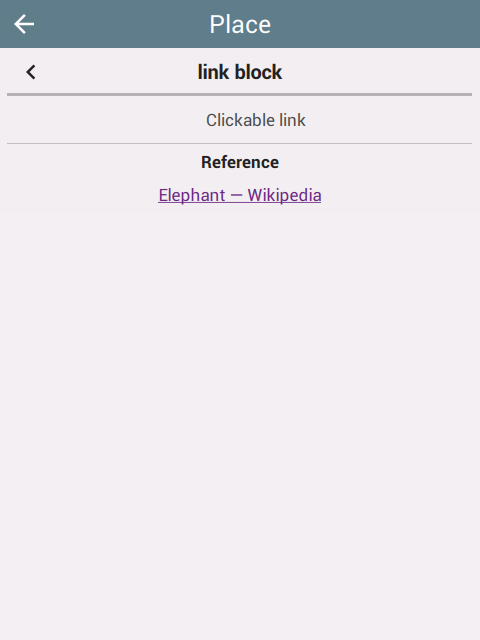 |
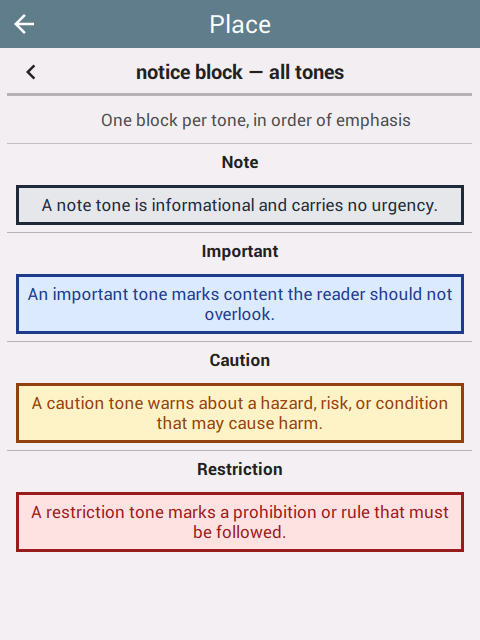 |
Runtime lookup flow
- Identify layers whose
layers.jsonentries havelookup: true - For each such layer, locate
<basename>.geojsonand<basename>.json - Run the point-in-polygon test against the companion GeoJSON
- Collect each selected feature’s
properties.featureId - Load the companion content JSON
- Evaluate every dataset’s
filter.featureIdsagainst the selected ids (§3.1) - If the runtime has an active date/time filter, evaluate
filter.when(§3.2) - Render the matching rows in declaration order
3.1 Filter by feature
filter.featureIds is an array of strings matched against the featureId property of the selected GeoJSON feature(s). The dataset applies if any element matches. The wildcard ["*"] matches any selected feature.
{ "featureIds": ["country:MN", "region:MN-073"] }
If neither the wildcard nor the matched feature’s id appears in featureIds, the dataset is skipped.
Sample
A minimal one-feature world weather package. The companion weather.geojson:
{
  "type": "FeatureCollection",
  "features": [
    {
      "type": "Feature",
      "properties": { "featureId": "world" },
      "geometry": {
        "type": "Polygon",
        "coordinates": [[
          [-180.0, -90.0], [180.0, -90.0], [180.0, 90.0], [-180.0, 90.0], [-180.0, -90.0]
        ]]
      }
    }
  ]
}
The companion weather.json:
{
  "content": {
    "id": "weather-en",
    "language": "en",
    "defaultLocale": "en-US"
  },
  "datasets": [
    {
      "id": "world-weather",
      "filter": { "featureIds": ["world"] },
      "rows": [
        {
          "path": ["Weather"],
          "view": {
            "title": "Local weather",
            "subtitle": "wttr.in",
            "blocks": [
              { "type": "notice", "label": "Note", "tone": "note",
                "text": "Open the embedded view for live conditions at the tapped location." },
              { "type": "web",
                "value": "https://wttr.in/<latitude>,<longitude>?0",
                "orientation": "portrait" }
            ]
          }
        }
      ]
    }
  ]
}
3.2 Filter by time range
filter.when is optional. When present, both start and end are required RFC 3339 date-times:
| Field | Required | Notes |
|---|---|---|
start | yes | RFC 3339 date-time. |
end | yes | RFC 3339 date-time. |
Default time behavior:
- If the runtime has no active date/time, datasets are not filtered by time.
- If the runtime has an active date/time,
filter.whendecides whether the dataset overlaps the selected range.
To express disjoint windows (e.g. winter as Dec–Feb of every year), emit multiple datasets that share the same featureIds. Datasets without when are always eligible from a time perspective.
Sample
A spring-in-the-northern-hemisphere dataset:
{
  "id": "northern-spring",
  "filter": {
    "featureIds": ["hemisphere:north"],
    "when": {
      "start": "2026-03-01T00:00:00Z",
      "end":   "2026-05-31T23:59:59Z"
    }
  },
  "rows": [
    {
      "path": ["Northern Hemisphere", "Spring"],
      "view": {
        "title": "Spring in the Northern Hemisphere",
        "subtitle": "March – May",
        "blocks": [
          { "type": "body", "label": "Description", "format": "text",
            "value": "Days lengthen, temperatures rise, plants leaf out." }
        ]
      }
    }
  ]
}
A localized example with a fixed event window:
{
  "filter": {
    "featureIds": ["country:MN"],
    "when": {
      "start":    "2026-07-11T00:00:00+08:00",
      "end":      "2026-07-15T23:59:59+08:00"
    }
  }
}
3.3 Legal Atlas demo
 Legal Atlas® is one deployment of the place-lookup feature. Its packages contain polygons and metadata used to identify which laws may apply at a tapped location. The dataset currently available is limited to Mongolia and was developed in partnership with Legal Atlas®, Wildlife Conservation Society, and the SMART Partnership.
Download Mongolia package (English)
Download Mongolia package (Mongolian)
Disclaimer: Legal Atlas® content is provided for informational purposes only and does not constitute legal advice. Always consult official government sources or qualified legal counsel for definitive legal guidance.
The same legal data is also accessible on the Legal Atlas® platform (a free account is required). Contact info@legal-atlas.net for assistance.
4. Distribution
4.1 Local install of a zip file
On desktop, install with Install package from the File menu.
On mobile, open the Offline maps page via Settings (or the gear icon on the Map Layers page) and add the zip:
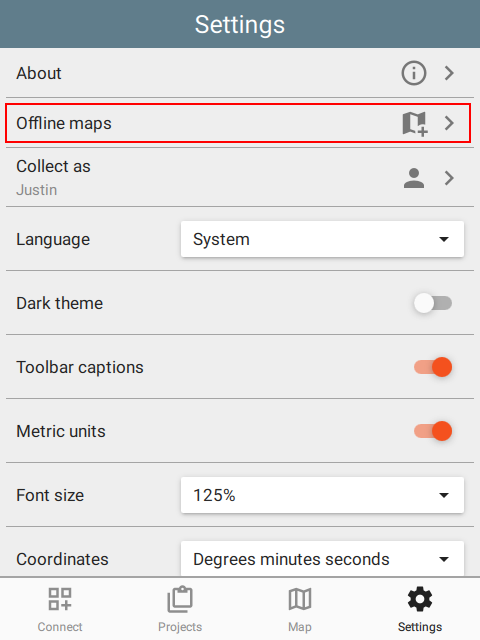 | 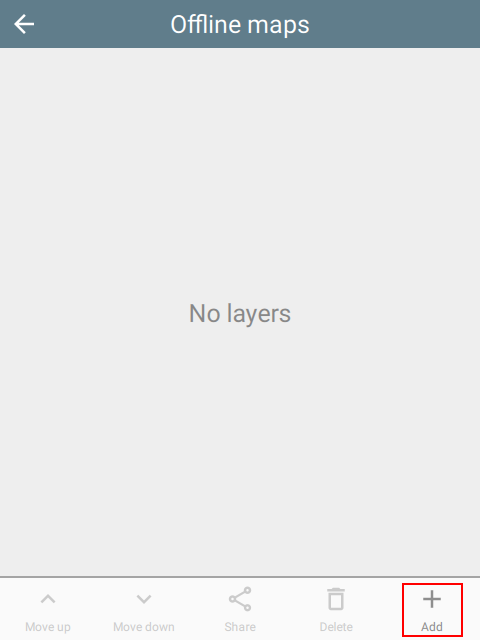 | 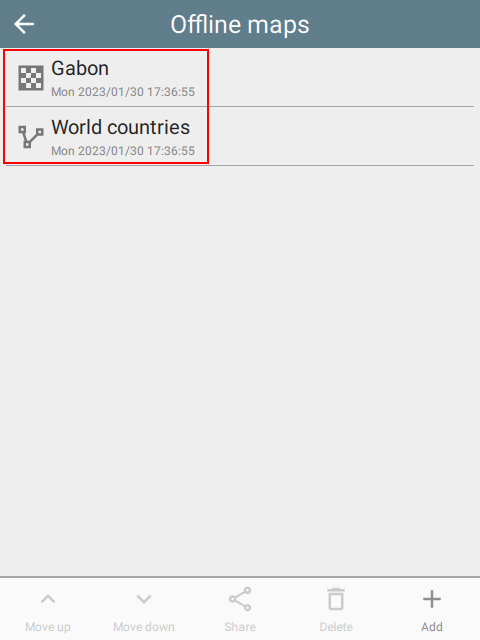 |
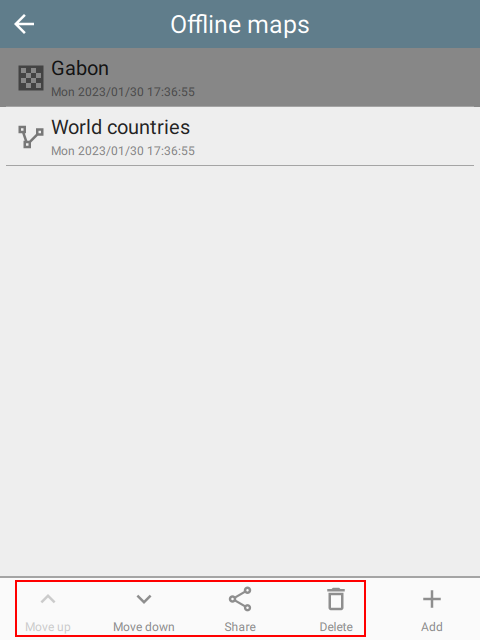
The same Settings page is used to re-order layers, share the package with other devices, or delete it. Sharing transfers the entire original package, not just the selected layer.
 |
4.2 SMART Packages
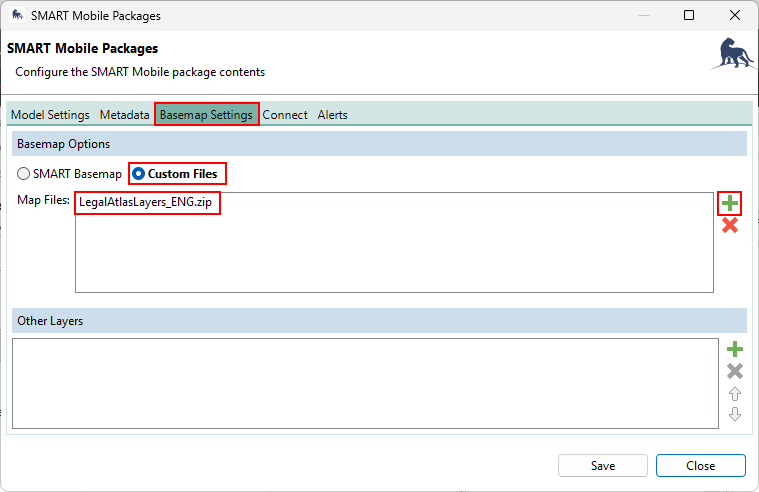
In SMART Desktop, you can add an offline map package to a regular SMART Mobile package. This is done by adding the offline map package under Basemap Settings, Custom Files, select + and add the package:
 |
4.3 Applink / QR code
A package can also be installed by giving users an applink that opens CyberTracker (or SMART Mobile) and downloads it. The applink shape is https://cybertrackerwiki.org/applink/?x=<payload>, where <payload> is the base64 encoding of a small JSON object:
{ "webUpdateUrl": "https://ctwiki.blob.core.windows.net/bin/LegalAtlasMongoliaTest.zip" }
To build one:
python -c '
import base64, json
payload = {"webUpdateUrl": "https://ctwiki.blob.core.windows.net/bin/LegalAtlasMongoliaTest.zip"}
print("https://cybertrackerwiki.org/applink/?x=" + base64.b64encode(json.dumps(payload).encode()).decode())
'
The CyberTracker app intercepts cybertrackerwiki.org/applink/ URLs, decodes the x parameter, fetches webUpdateUrl, and installs the package. Anything that hands a user a clickable URL works (chat, email, QR codes, NFC).
For SMART Mobile, use the applink-smart prefix instead — https://cybertrackerwiki.org/applink-smart/?x=<payload>.
Encoding the applink as a QR code also works: CyberTracker and SMART Mobile will read the QR code and install the package the same way.
5. Sample packages
Applinks for CyberTracker:
- blocks - all content block types
- holidays in Mongolia
- seasons by location and time
- weather by location via web
Applinks for SMART Mobile: