Polygon attribute
Understanding GPS Error and Best Practices for Accurate Results
1. Overview
The polygon attribute in SMART 8 allows users to collect geospatial attributes as part of an observation. You can use the polygon attribute to map the boundary of an area such as a crop damage site, burned area, or habitat patch by walking its perimeter while a mobile device records GPS points in SMART Mobile. The device then calculates the enclosed area automatically.
While this tool is highly useful for large areas, its accuracy depends heavily on GPS quality. This guideline explains what GPS error means in practice and how to use the polygon attribute effectively in the field.
2. How GPS Error Affects Area Measurements
What is GPS Error?
GPS error is the difference between where your device thinks you are and where you actually are. On a mobile phone in open terrain, typical GPS error ranges from about 3 to 15 metres, though it can be higher under dense tree cover or in poor weather.
Why Does It Matter for Area?
When you walk a boundary, each recorded point is slightly offset from your true position. These offsets distort the shape of the polygon, sometimes making it appear larger than it is, sometimes smaller. Crucially, the impact of GPS error scales with the size of the area:
- For a 100 x 100 metre area, even a 5-metre GPS error can noticeably distort the shape.
- For a 10 x 10 metre area, a 5-metre error is half the width of the plot which makes accurate measurement nearly impossible.
- For a large, burned area spanning several hectares, the same 5-metre error is much less significant proportionally.
Small Areas Are Highly Sensitive to GPS Error
The polygon attribute is not well-suited for measuring small areas such as individual crop damage plots. For small areas, use a measuring wheel or tape measure for reliable results.
Visual Illustration of GPS Error
The figure below shows simulated polygon walks of a 100 x 100 metre plot under different GPS error levels. The true boundary is shown in red dashes; the recorded polygon is in black.
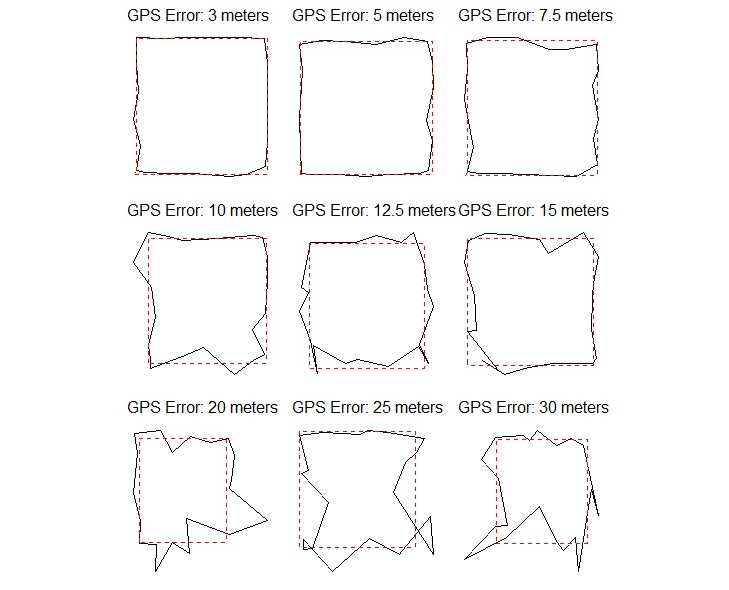
Figure 1. Simulated polygon walks at GPS errors of 3 m to 30 m on a 100 x 100 m area.
At low GPS error (3–5 m), the recorded shape closely follows the true boundary. By 10–15 m error, significant distortion is visible. Above 20 m, the recorded polygon bears little resemblance to the actual area.
3. Quick Reference — GPS Error vs. Reliability
| GPS Error | Area Accuracy | Recommended Use |
|---|---|---|
| < 5 metres | Very reliable | All area types |
| 5 – 10 metres | Acceptable | Areas > 50 x 50 m |
| 10 – 20 metres | Moderate error | Large areas only (> 1 ha) |
| > 20 metres | High error | Not recommended — use measuring wheel |
4. Best Practices in the Field
Before You Start
- Check the GPS accuracy indicator in SMART Mobile before beginning. If it shows more than 10 metres of error, wait in an open area for a stronger signal.
- Avoid taking measurements under dense tree canopy, near tall buildings, or during heavy cloud cover, as these degrade GPS signal quality.
- Give the device at least 60 seconds to acquire a stable GPS fix before walking the boundary.
Choosing: Manual Tap vs. Auto-Collect
The SMART polygon attribute offers two ways to record boundary points:
| Auto-Collect (every N seconds) | Manual Tap (you control each point) | |
|---|---|---|
| Best for | Large, open areas with strong GPS signal | All situations; especially irregular shapes or weaker GPS |
| Advantage | Hands-free; no need to interact with device while walking | Greater control; can pause at corners to improve accuracy |
| Risk | Points recorded at regular intervals regardless of GPS quality at that moment | Requires ranger to actively monitor and engage with the device |
Use Manual Tap when GPS accuracy is uncertain or the area is small. Pausing briefly at each corner before tapping gives the GPS time to settle, improving accuracy.
Walking the Boundary
- Walk at a slow, steady pace, approximately 2 metres per second or slower.
- At corners or sharp bends, pause for a few seconds before recording the point.
- Walk as close to the actual boundary as possible — stay on the edge, not inside the area.
- Complete the full perimeter before closing the polygon in the app.